
Turn Your Script Into an AI Movie
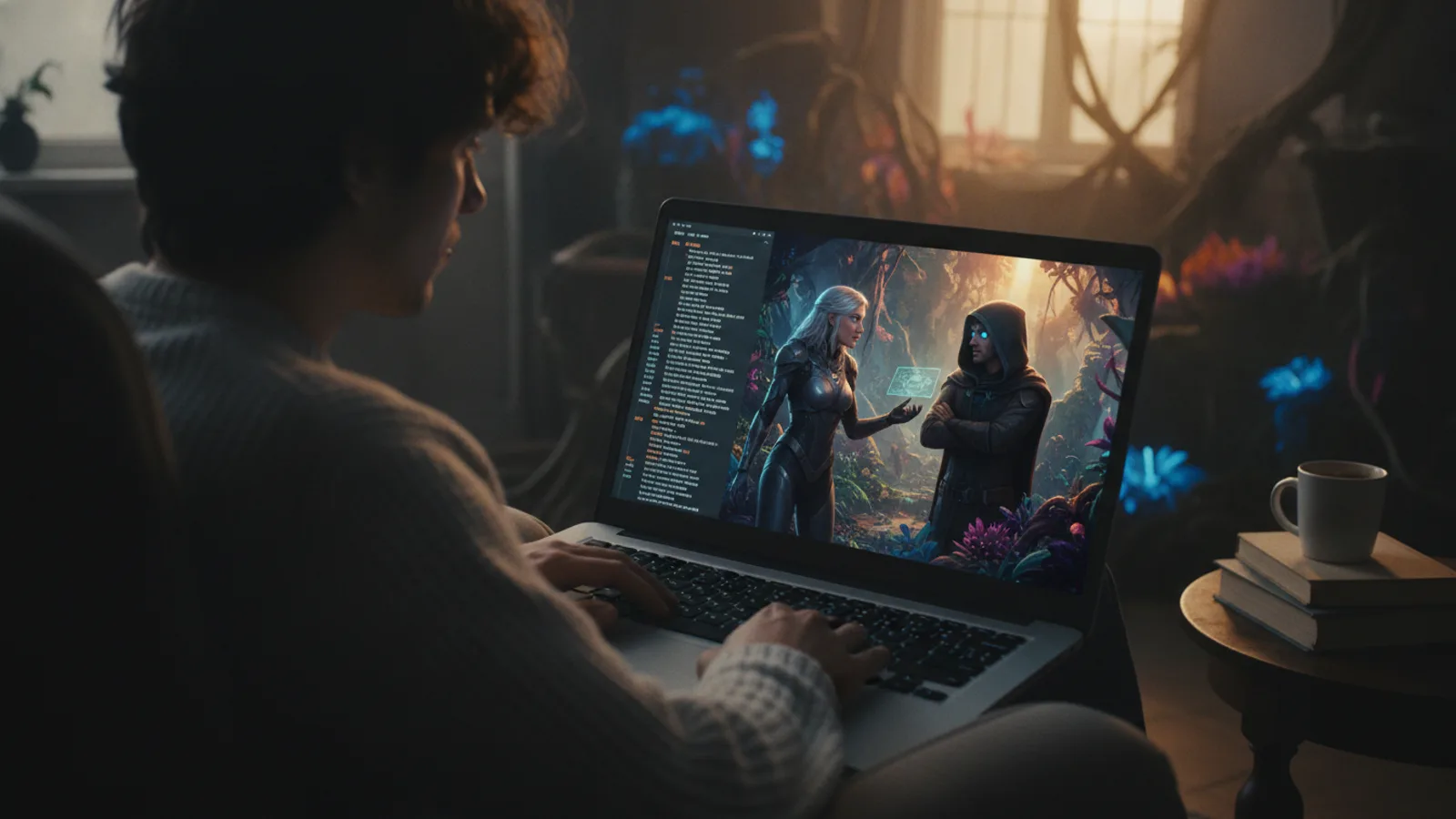
You have a script. It might be a few pages of dialogue, a scene you've imagined for years, or a full-length screenplay. The traditional path to turning it into a film is long and costly. What if you could skip the crew, the cameras, and the budget, and see your story move and speak in minutes? That's the process of making an ai movie from script. (No script yet? Start with how to write a movie script with AI, then come back.)
Cinely is built to use your writing as the direct blueprint. You paste your script word for word, and the AI handles the visual and auditory interpretation. This isn't about generating a generic video from a prompt; it's about directing a specific narrative you've already crafted. Your job shifts from producer to creative director, making key choices on casting, visual style, and pacing to bring your written words to life.
How to Upload and Format Your Script
The process starts in the Script tab of the AI movie maker, Cinely's script-to-movie editor. You can paste up to 30,000 characters of your screenplay directly into the editor. Cinely preserves your text exactly as written, which is crucial for maintaining your voice and pacing. Format your script as you normally would: character names followed by dialogue, with optional action lines for scene description.
A key feature is how the system handles scenes without dialogue. For purely descriptive passages or action sequences, you can provide an optional AI one-liner—a short, natural-language instruction that guides the visual generation for that moment, like "a tense standoff in a rainy alley." This bridges the gap between your descriptive prose and the visual output without altering your scripted dialogue. You maintain full creative control over which moments get this extra guidance.
Practical Script Formatting Tips:
- Clear Character Names: Use consistent names (e.g., always "DETECTIVE MILLER," not "Miller" then "The Detective").
- Minimal, Punchy Action Lines: Instead of lengthy paragraphs, use concise descriptions that cue the mood (e.g., "She slams the door. Silence.").
- Scene Breaks: Mark distinct scenes or location changes clearly (a blank line and a slugline like "INT. KITCHEN – NIGHT") so the AI splits the script the way you intend. Remember that each scene becomes one 8-second clip.
Casting Your Characters From a Script
Your characters are the heart of your story. In Cinely, you can cast up to 20 characters per film on a free account, or 50 with a Premium subscription. For each role, you can upload a photo (yourself, or someone who has given consent), pick one of the built-in AI characters, or generate an entirely new AI-drawn portrait from a text description.
This is where pre-production happens digitally. You define a character's look once, and the AI applies it consistently across every scene they appear in (how to keep AI characters consistent explains what helps). You also select a voice preset for each character, choosing from 30 built-in voices to match their personality; the voice then stays with that character across episodes. When you write a scene, only the characters named in that section of the script are "attached" and will appear, keeping the visuals clean and accurate to your narrative.
Casting Checklist:
- List All Speaking Roles: Go through your script and make a master list.
- Prioritize Main Characters: Spend time refining the looks and voices for your protagonist, antagonist, and key allies first.
- Use Descriptive Prompts for AI Portraits: For generated faces, be specific (e.g., "a weary merchant in his 50s with a scar across his eyebrow and kind eyes").
- Test Voices: Play the voice preset samples while reading the character's dialogue to find the best fit.
Generating Scenes and Managing Credits
With your script uploaded and characters cast, you generate the film scene by scene. Each scene in your script becomes an 8-second video clip. You choose a generation mode for the film: Standard (the free default), Pro (the Premium default) or Cinematic, which costs more per scene and can hold more faces in one clip.
There are practical limits to manage your resources. A single clip in Standard or Pro mode can feature up to 3 character faces clearly, while Cinematic mode can handle up to 7. This influences how you might block a crowded party scene versus an intimate two-person conversation. Scene generation costs credits: 30 credits per scene for Standard/Pro mode, and 60 credits per scene for Cinematic mode. You can also choose between portrait (9:16) or landscape (16:9) orientation for the film, depending on whether you're aiming for social media or a widescreen feel. If you need more, buy coins in packs.
Common Mistake to Avoid: Don't generate your entire script at once in the highest-quality mode without a plan. You might run out of credits. A better strategy is to generate a short 2-scene test first in your preferred mode to check quality, then commit the full script. Free accounts are capped at 6 scenes per film, so a long screenplay belongs on a Cinely Premium account (up to 100 scenes) or split into episodes.
Finalizing Your AI Film
After generation, you enter the editing phase. All clips are assembled in the order of your script on a timeline. Here, you can fix any scene that missed—edit the clip or recreate it from a revised prompt (Premium, charged per scene) while the rest of the film stays untouched. One of the most powerful finishing touches is subtitles. Cinely offers optional auto-generated subtitles in any of its 17 supported content languages. These aren't locked in; you get an editable transcript, allowing you to fix any AI mishearings, adjust timing, or even change wording for clarity while keeping the original audio intact.
This is where your movie becomes polished. You review the flow, ensure the characters' appearances and voices match your vision, and that the visual tone from scene to scene supports your story. When you're satisfied, you can export your film, share it directly from the platform, or even turn it into an AI movie trailer to promote it. The journey from a text document to a shareable video is complete.
Final Review Steps:
- Watch Silently: Check the visual flow and consistency.
- Watch with Sound: Ensure voices match characters and audio is clear.
- Watch with Subtitles: Proofread every line for errors and proper timing.
- Get Feedback: Share the film's link with a friend for a second opinion before you publish it from Cinely Studio.
Why Start With a Script?
Beginning with a full script, rather than just a loose idea, gives the AI a concrete framework. It knows who is speaking, what they are saying, and in what order. This structure leads to more coherent and narrative-driven results compared to generating random scenes from prompts. Your script provides the essential bones of plot and character development that AI can then flesh out visually.
It also future-proofs your work. As AI video technology evolves, you can always take your original script—your core intellectual property—and regenerate scenes with newer, more advanced models for better quality or different styles. The script is the source truth. Whether you're a writer testing scenes, a creator building a narrative series for the AI series catalog, or an educator visualizing a historical dialogue, starting with a script turns the AI from a idea generator into a true collaborator, executing your specific vision.
Advanced Workflow: From Script to Series
Once you've mastered a single film, your script can be the foundation for more. A feature-length screenplay can be broken into episodes. A series of short scripted scenes can become recurring content. Because a character's styled look and voice are cached per series and reused in every later episode, you can maintain continuity across episodes. This makes it an ideal tool for creating pilot episodes, proof-of-concept videos for larger projects, or serialized content where visual consistency is key. Watch a few AI sci-fi series or comedy series to see how other creators structure their stories for AI filmmaking.
- Do I need to write my script in a specific format?
- You can paste your script in a standard screenplay format or even simple dialogue. The system reads character names and their lines directly. For scenes with no dialogue, you have the option to add a brief, one-line visual instruction for the AI, but your scripted words remain unchanged. The editor accepts up to 30,000 characters of your text.
- How many characters can I have in one scene?
- The number depends on the visual mode you choose. For Standard or Pro mode, a single 8-second clip can clearly feature up to 3 character faces. If you use Cinematic mode, that limit increases to 7 faces per clip. Only the characters you've named in that specific part of your script will be attached and appear in the generated scene.
- Can I edit the movie after the AI generates it?
- Yes. The episode editor works scene by scene: pick a scene on the timeline and either edit the clip or recreate it from a revised prompt (a Premium feature, charged per scene). You can also edit the auto-generated subtitles, which come in any of 17 languages as an editable track, so you can correct errors without affecting the original audio.
- How long does it take to make an AI movie from a script?
- The initial setup—pasting your script and casting characters—takes just minutes. Scene generation runs on Cinely's servers and takes minutes rather than hours, depending on load and how many scenes you ordered. The real time investment is in your creative direction: choosing a visual style, managing your cast, and reviewing the finished scenes.
Written with AI assistance and edited by the Cinely Team.