
How to Create AI Movies on Android with Cinely
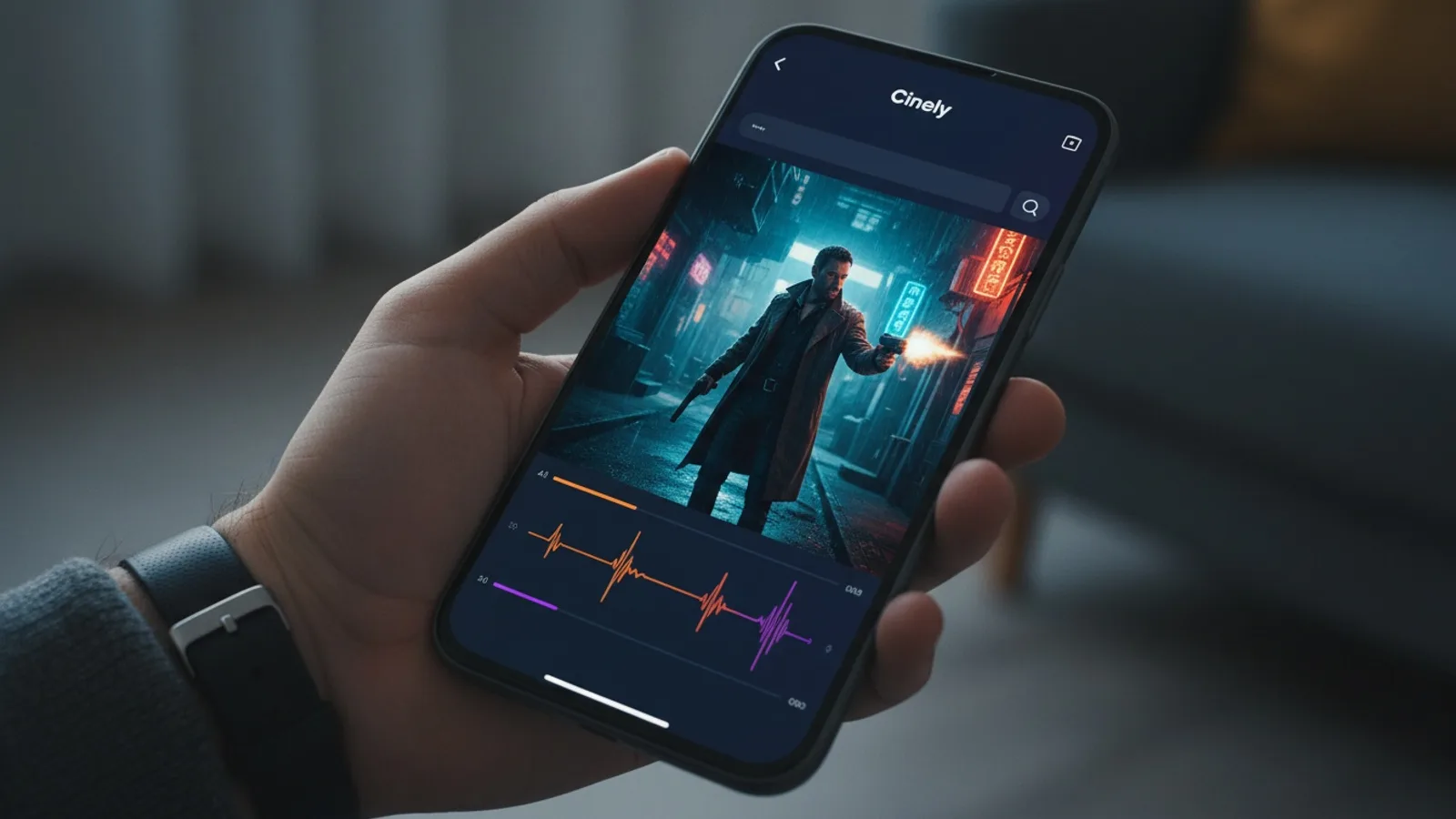
Your Android phone is a powerful creative tool. It can edit photos, write notes, and shoot video. Now, with the Cinely app from the Google Play Store, it can be your mobile AI movie studio.
Your Cinely account is fully mobile. Log in on your Android phone and you have access to all your AI-generated series, movie credits, and the same creative tools available on the web. This means you can write a scene while waiting for coffee, generate a trailer on your commute, or check on your audience stats from anywhere. The creative process doesn't stop when you leave your desk. This guide will walk you through using Cinely on Android, from downloading the app to publishing your next creator series.
Install the Cinely Android App
The first step is getting the app onto your device. Search for 'Cinely' in the Google Play Store or visit the official Cinely download page for a direct link. The installation process is standard. Once downloaded, open the app. You can log in with your existing Cinely account. If you're new, you can sign up directly in the app. Your credentials give you immediate access to everything you've done on the web version—your profile, any ongoing series, and your current credit balance are all there.
Installation Checklist:
- Search 'Cinely' in Google Play or use the official download link.
- Tap 'Install' and wait for the process to complete.
- Open the Cinely app from your home screen or app drawer.
- Log in with your existing account email/password or tap 'Sign Up'.
- Grant any necessary permissions (like notifications for generation alerts).
Navigate the Mobile Interface
The Cinely Android app is designed for touch. The core tabs you'll use are Create, Watch, and Studio. The Create tab is your launchpad for new projects. Here, you can start a new series from scratch or continue drafting an existing one. The Watch tab is your personalized feed, showcasing trending creator series and new episodes from creators you follow. The Studio is your control center, where you manage your published series, view analytics, and see notifications from your audience.
Tapping the menu icon (usually three lines or your profile picture) opens a navigation drawer. This is where you'll find links to explore genres, access your coin balance, or upgrade to Cinely Premium. The interface is condensed but not cramped. Text inputs, generation buttons, and playback controls are sized for your thumbs.
Pro Tip: Familiarize yourself with the quick actions. A long-press on the app icon (on supported Android versions) might offer shortcuts to 'Create New Series' or 'Go to Studio', saving you navigation taps.
Create & Manage AI Movies on Your Phone
Starting a new project feels familiar. Tap the 'Create' button and you're presented with the same foundational choices: genre, tone, and initial plot ideas. You write your scene descriptions or dialogue in the text field. The on-screen keyboard works fine, but many creators find voice-to-text dictation even faster for brainstorming scenes on the go.
When you're ready to generate a scene, you spend your movie credits just like on the web. The process for purchasing additional coins is handled securely through Google Play. If you have a Cinely Premium subscription, your benefits, like faster generation or exclusive styles, are active in the app. The generation happens on Cinely's servers, so your phone's hardware isn't taxed. You'll get a notification when your scene is ready to view.
Editing your generated movie is straightforward. You can reorder scenes by tapping and dragging, add new ones between existing clips, or tweak the narrative direction in the script editor. The mobile preview player lets you watch your creation in full screen. When you're satisfied, you can publish your episode or entire series directly from your phone. It enters the same ecosystem, available for others to watch on both the app and the web.
Common Mobile Creation Mistake: Trying to write a full, complex scene description in one go on a small screen can be frustrating. Instead, break it down. Write the core action in the app, then use a note-taking app for longer dialogue or detailed descriptions, and paste the final text into Cinely.
Sync Your Work Between Devices
This is a key feature: there is no 'Android version' of your project. There is only your Cinely project. Any change you make on your phone is reflected instantly when you log into Cinely on a laptop or tablet. You can start a series outline during your lunch break, flesh it out on your home computer in the evening, and then generate the final scenes on your phone the next day. Your credits and subscription status are also synchronized. A credit purchased on the web is available in the app, and vice-versa.
This seamless sync means you're never locked out of your creative workflow. Inspiration doesn't keep office hours. With the Cinely Android app, your movie studio is truly in your pocket. For example, you could sketch a horror series concept titled 'Static' on your phone with a few key scenes. Later, on a desktop, you could expand it with intricate lore and character bios in the Studio. Finally, you could use your phone again to generate the climactic scenes while traveling.
Optimize Your Mobile Workflow
To get the most from Cinely on Android, a few practical tips help. Use a Wi-Fi connection for generating scenes and uploading final episodes to save mobile data. The app respects your device's settings, so enabling battery saver might slow down some background sync operations. For longer writing sessions, consider pairing a Bluetooth keyboard with your phone or tablet for a more desktop-like experience.
Explore genres directly from the app to see what's trending. You can browse categories like sci-fi, fantasy, or comedy for inspiration. Engaging with other creators—watching series, leaving comments—is just as easy on mobile and helps you understand the platform's community. Your activity here feeds the algorithm that helps viewers discover your own work.
Advanced Mobile Strategy: Use the Watch feed not just for entertainment, but for research. Notice the pacing of popular action series or the visual style of top mystery creators. Take screenshots (outside the app) of scenes you admire for composition or tone, and use them as a visual reference when writing your own prompts. The mobile app is perfect for this passive, observational learning.
Troubleshooting & Getting Help
Most issues are simple to resolve. If the app crashes on launch, try closing it completely from your recent apps menu and reopening it. If a scene fails to generate, check your internet connection first. Your credits will only be consumed upon successful generation. If you encounter a persistent bug, the best course of action is to ensure your Cinely app is updated to the latest version from the Play Store.
For account-specific issues, like a login problem or a missing credit transaction, support is handled through the main Cinely website. Since your account is unified, support can investigate issues across both web and app activity. Remember, purchasing coins or Premium in the app uses Google Play Billing; receipts and subscription management for those transactions are handled through your Google account settings.
Ultimately, the Cinely Android app removes the barrier between an idea and its execution. If you can describe a scene, you can produce it, regardless of your location. The toolset is professional, but the access is democratic. Your phone is no longer just for consumption; it's for creation.
- Do I need a separate account for the Cinely Android app?
- No. Use your existing Cinely account. Your login gives you access to all your projects, credits, and published series. Everything is synchronized between the Android app and the Cinely web platform automatically.
- How do I get more movie credits on the Android app?
- You can purchase coin packs directly within the Cinely Android app. The transaction is processed securely through the Google Play Store. Any credits you buy are added to your account balance and are immediately available for use on both the app and the web version.
- Can I use Cinely Premium features on my Android phone?
- Yes. If you have an active Cinely Premium subscription, all associated benefits apply within the Android app. This includes any faster generation times, exclusive artistic styles, or other features that are part of your subscription tier. Your subscription status is linked to your account.
- What if I have a problem with the app?
- First, try closing and restarting the app, and check for updates in the Play Store. For generation or sync issues, a stable internet connection is key. For billing issues related to in-app purchases, consult your Google Play account. For other account problems, contact Cinely support through the main website.
Written with AI assistance and edited by the Cinely Team.