
How to Make Educational Videos for Kids with AI
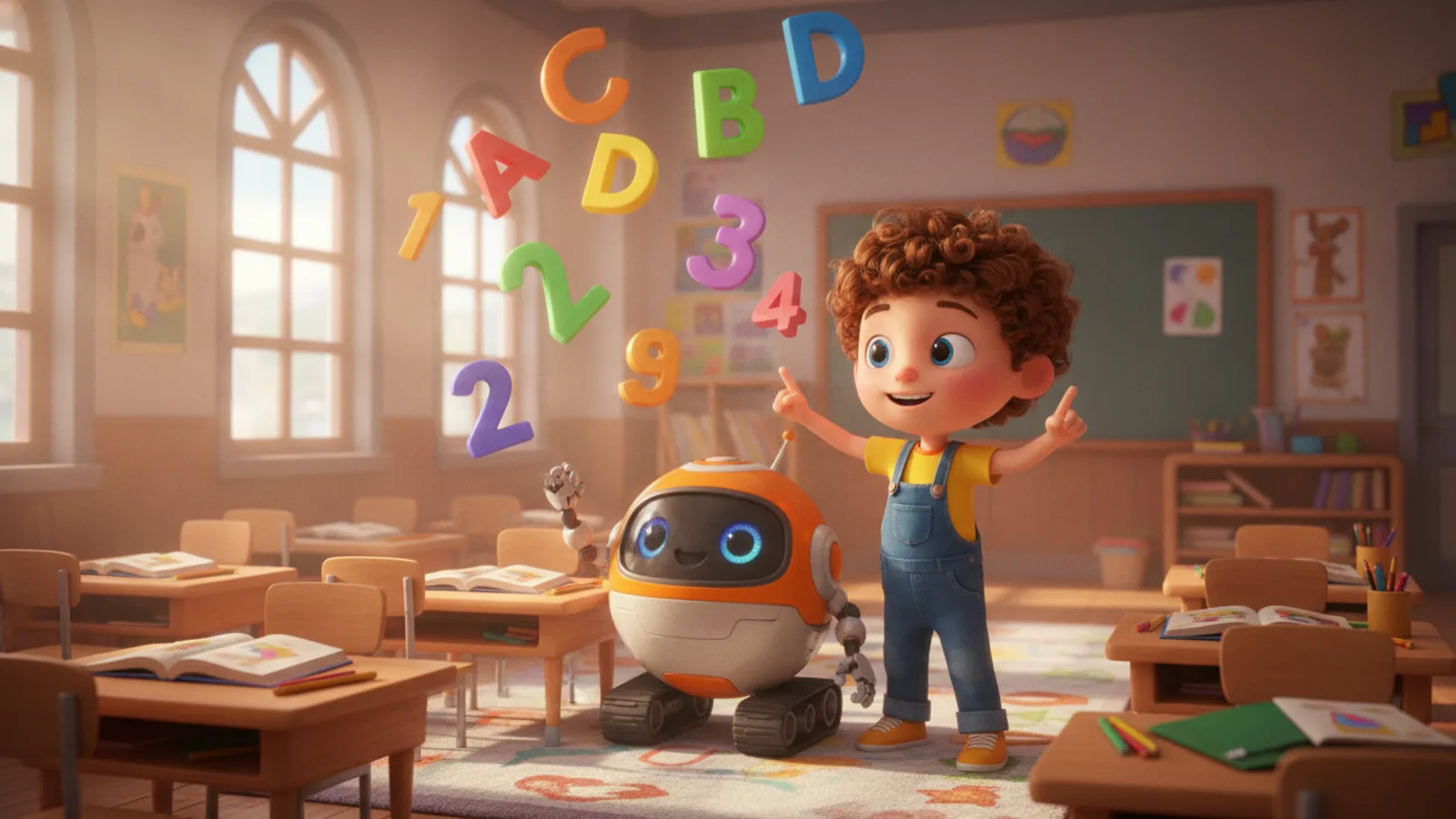
To make an educational video for kids, pick one topic, decide the child's age, and build 30 to 90 seconds around one idea per short clip, with one big word on screen, a question near the end and a cheer at the very end. You can animate it yourself, or type the topic into an AI educational video maker such as Cinely's, choose the age band, and read the whole script on a free preview before any credits are spent.
This guide is for parents, preschool and primary teachers, and people who run kids' channels. It covers what makes a short learning video work for young children, a five-step plan, a full clip-by-clip example, twelve topic ideas by age, and how to make one in Cinely with the real settings.
What makes a kids' learning video work
Good children's learning videos look different, but most share the same bones:
- One topic per video. "The letter B", not "the alphabet". "Counting to 10", not "numbers". Make a second video for the next idea.
- One idea per clip. A small child follows one thing at a time. In Cinely every clip is 8 seconds and carries one idea.
- Words matched to the age. Toddlers need very short sentences and repetition; early-school children need a concrete example; older children want to know why.
- Something to read on screen. One big keyword per idea ("B", "Ball", "Bubbles") helps children who are learning to read, and gives a parent or teacher something to point at.
- A question before the end. Asking "What starts with B?" invites the child to answer out loud instead of only watching.
- A cheer and a takeaway. End on praise and one line that sums up the lesson.
How the age changes the script
Cinely's writer follows different rules for each of its three age bands. They are a useful guide even if you script by hand:
| Age | How the narrator talks | Good topics |
|---|---|---|
| 2–4 | Sentences of 3 to 6 short everyday words, the key word said twice, at most 12 words per clip; big, round, bright and slow | Colours, animals, toys, food, family, the body |
| 5–7 | Simple sentences of at most 10 words, one concrete example the child can see per clip, at most 16 words per clip; playful and a little funny | Numbers, letters, habits, feelings, friends, nature |
| 8–10 | Clear sentences with a short "why" behind each idea, a hard word explained with a picture, at most 20 words per clip; curious, never babyish | How things work, safety, the natural world |
The narrator's voice follows the age too. On Auto it is a gentle storyteller for 2–4, a warm, playful teacher for 5–7 and a friendly teacher for 8–10. You can also choose a voice from the catalog, or record your own once and narrate every lesson yourself, which a class or a child may find familiar.
Plan an educational video in 5 steps
- Write the learning goal as one sentence. "By the end, the child can name three things that start with B."
- Choose the age band. It decides sentence length, pace and how much each clip explains.
- Pick a length. 30 seconds (4 clips) for a single idea, 60 seconds (8 clips) for an idea with several examples, 90 seconds (12 clips) for a short routine or a topic with steps.
- List the ideas, one per clip. The first clip introduces the topic, the last one praises and sums up, the one before it asks a question. Everything between teaches.
- Decide the cast. A narrator alone, a friendly companion character, or the child themselves as the hero.
Example: "The letter B" in 60 seconds
Age band 5–7, 60 seconds, eight clips of 8 seconds. In Cinely the word cards follow this order automatically: the title on clip 1, a keyword on each teaching clip, the question on clip 7 and the recap on clip 8.
| Clip | Card | Narration idea |
|---|---|---|
| 1 | Title: "The letter B" | "Today we meet the letter B!" |
| 2 | "B" | "B says buh. Buh, buh, B!" |
| 3 | "Ball" | "Ball starts with B. Bounce the ball!" |
| 4 | "Bear" | "Bear starts with B. Hello, bear!" |
| 5 | "Banana" | "Banana starts with B. Yum!" |
| 6 | "Bubbles" | "Bubbles start with B. Pop, pop, pop!" |
| 7 | Question: "What else starts with B?" | "Can you think of one more B word?" |
| 8 | Recap: "Great job! B says buh!" | "You know the letter B. Well done!" |
The same frame works for numbers ("Counting to 10": two numbers per clip), habits ("Why we brush our teeth") or feelings ("What to do when you feel angry").
12 topic ideas by age
Ages 2–4
- Red, yellow and blue
- Farm animals and the sounds they make
- Washing our hands
- Parts of the face
Ages 5–7 5. The letter S 6. Counting to 10 with apples 7. Sharing with friends 8. Why we stop at the kerb before crossing
Ages 8–10 9. Why leaves change colour in autumn 10. How a seed becomes a plant 11. Why we need sleep 12. What to do if you get lost in a shop
Format: screen, length and language
- Screen. Landscape 16:9 fills a TV, a tablet or a classroom screen and is Cinely's default for lessons. Switch to portrait 9:16 for phones and short-video feeds.
- Length. Keep each video to one topic. A series of short videos is easier to replay than one long one.
- Language. The narration and word cards are written in the language you choose, or the language you type the topic in. Seventeen languages are supported, so the same lesson can be made in Spanish for one class and English for another.
How to make it in Cinely
- Open the AI educational video maker and type the topic in the box "What should your child learn?" (up to 300 characters). One clear sentence is enough.
- Set Your child's age: 2–4, 5–7 or 8–10.
- Optional: Child's name, and the narrator speaks to that child by name. For a class video, leave it empty.
- Optional: Your child as the hero: one clear photo of the child's face and they appear in every clip with the same face. Only upload a photo of a child you are the parent or guardian of; it is used for that video only.
- Optional: A companion: a name and one line about how they look ("Bobo the bear, a round blue bear with a yellow scarf").
- Choose the Length, the Language and a visual style, then the narrator voice. Word cards are on by default; turn them off if you want a clean picture and the narrator alone.
- Press Preview lesson. You get every clip, every word card and every narrator line to read. If a line is off, change the topic and preview again.
- Approve to make the video, then download it or share it.
Every lesson is written under kid-safe rules: nothing scary or violent, no brands, no copyrighted characters, bright and friendly scenes. A filter checks the request before anything is charged, and a scene that gets blocked is refunded.
Cost
Lessons are priced per 8-second clip: 30 credits in Standard quality, 60 in Cinematic (Cinematic needs Premium).
| Length | Clips | Standard | Cinematic |
|---|---|---|---|
| 30 s | 4 | 120 credits | 240 credits |
| 60 s | 8 | 240 credits | 480 credits |
| 90 s | 12 | 360 credits | 720 credits |
New accounts get a 100-credit welcome gift, and the daily check-in adds more, so a first 30-second lesson is within reach without paying. More credits are on the coins page. Free downloads carry a small "Made with Cinely" badge; Premium removes it. The web and the iOS and Android apps share one account.
Using the videos in class or on a channel
- Check every word. The preview is there so a teacher or parent reads the whole script before it is made. Fix anything that does not match how you teach the topic.
- Say it is AI-made when you share it, in the description or in class.
- Keep it original. No copyrighted characters or brands; invent your own companion instead.
- Children's faces. Only use a photo of a child you are the parent or guardian of. For a class video, use a cartoon companion rather than a pupil's photo.
When to use a different format
- To teach a lesson through a tale, with a moral at the end, use the AI story video maker; see moral story videos for kids.
- For a calm story at the end of the day, see bedtime story videos.
- For teenagers, adults or business topics, use the explainer video maker.
Making an educational video for kids comes down to one topic, one idea per clip and words a child of that age understands. Write your first topic in the AI educational video maker, read the preview, and watch it together.
- How long should an educational video for kids be?
- For children under 10, 30 to 90 seconds per topic is a good range: long enough for a title, a few teaching moments, a question and a cheer, short enough to watch twice. In Cinely a lesson is 30, 60 or 90 seconds, that is 4, 8 or 12 clips of 8 seconds.
- Do I need animation skills to make an animated educational video?
- No. With an AI educational video maker you write what the child should learn in one sentence and pick the age; the scenes, the narration and the word cards are written for you. Your job is to check the preview and fix anything that does not fit your lesson.
- How much does it cost in Cinely?
- Each 8-second clip is 30 credits in Standard quality: 120 credits for 30 seconds, 240 for 60, 360 for 90. Cinematic quality is 60 credits a clip and needs Premium. The preview is free and credits are only spent when you approve. New accounts get 100 welcome credits, and the daily check-in adds more.
- Can I use it for older students or adult topics?
- The educational video maker is written for children aged 2 to 10. For a topic aimed at teenagers or adults, such as how a product works or a science idea explained for grown-ups, use the explainer video maker instead.
Written with AI assistance and edited by the Cinely Team.