
How to Use Cinely: A Beginner's Guide
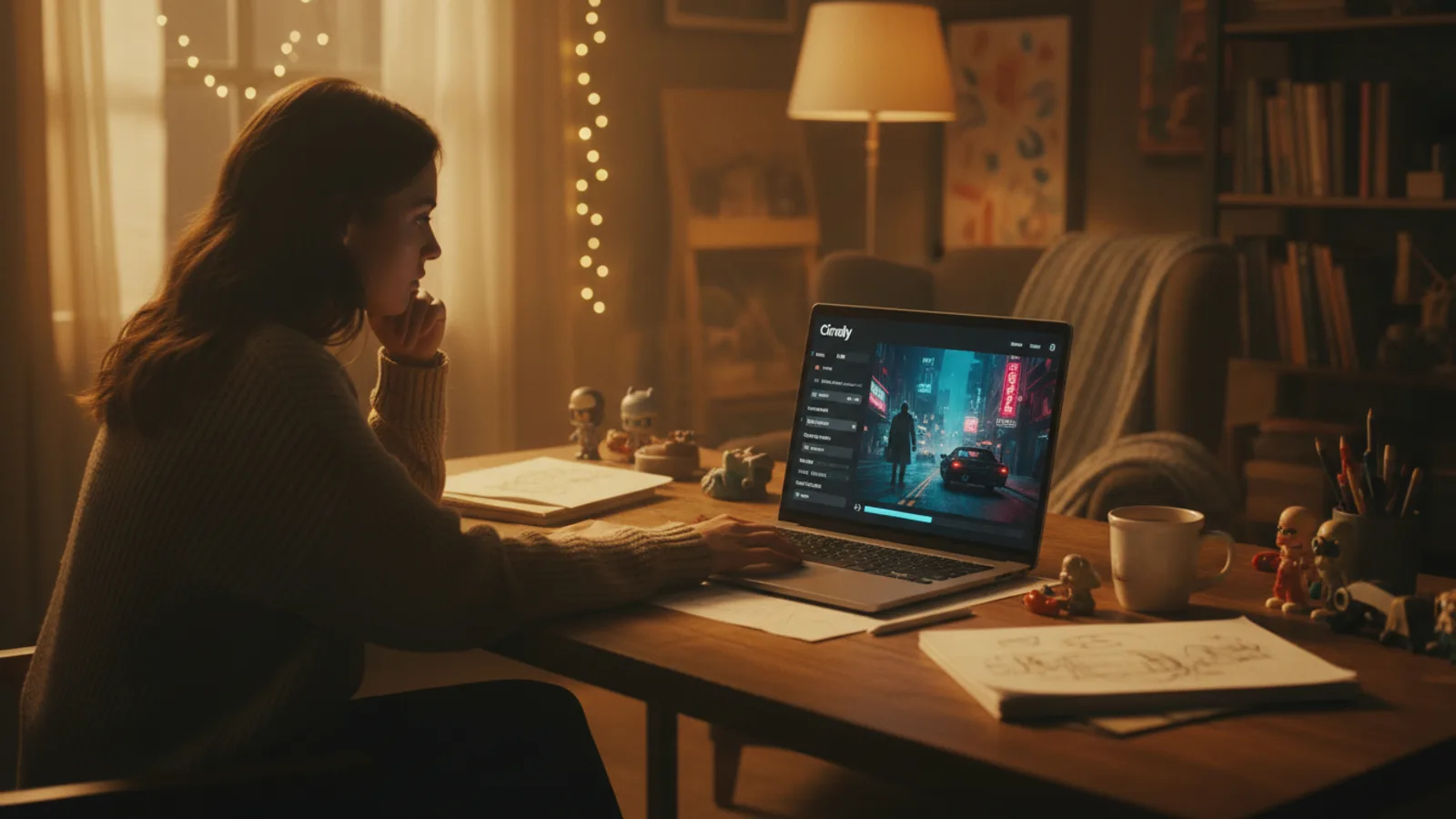
You've heard about AI movie-making. Now you're ready to try it. Cinely is a tool that lets you build short films from text, scene by scene, with AI handling the visuals and editing. If you're wondering exactly how to use Cinely for the first time, this is your walkthrough. We'll cover the basic flow from a blank page to a finished movie you can share.
Your first movie will likely start with a template, but you're not locked into anything. The process is iterative. You guide the story, and the AI generates the scenes. Let’s break it down.
Picking Your Starting Point: Templates and Inspiration
The Cinely dashboard is where you begin. When you click to /create a new project, you’ll be presented with a choice. You can start from a blank page with just an idea, or you can browse templates.
Templates are pre-built story frameworks. They give the AI a strong starting direction, like “A detective solves a supernatural case” or “Two rivals fall in love.” This doesn't mean your movie has to follow that template exactly—it’s more of a creative launchpad. If you need inspiration, check out the /explore pages for genres like /explore/sci_fi or /explore/comedy to see what others are making.
Your selection here sets the initial tone and genre, which influences the visual style options you'll see later.
Defining Your Main Character and Visual Style
This is where your movie becomes yours. After choosing a starting point, you’ll name your main character and select their gender presentation. Here’s a key feature: you can optionally upload a selfie. If you do, the AI will use it as a reference to generate a character that resembles you for the leading role. It’s a quick way to star in your own film.
Next, you choose a visual style. These are preset artistic filters that determine the look of your movie. One might mimic a gritty noir film, while another could look like a vibrant anime or a classic Hollywood romance. This choice applies a consistent aesthetic across all your generated scenes.
You also select the aspect ratio—whether you want a widescreen cinematic look (16:9) or a vertical format (9:16) perfect for social media platforms like TikTok or Instagram Reels. Think about where you plan to share your movie when making this decision. A vertical movie feels native on a phone screen.
Building Your Movie, Scene by Scene
Now the real construction begins. Cinely movies are built sequentially. You don't generate the whole film at once. You write a prompt for your first scene—for example, “A spaceship lands in a misty forest clearing.” You then generate that single scene. The AI creates the video based on your text.
Here’s a crucial part of how to use Cinely effectively: you review that scene. If you don’t like it, you can simply regenerate that specific scene with the same or a modified prompt. You don’t have to scrap the whole project and start over. This scene-by-scene approach gives you immense control. You build the narrative at your own pace, regenerating shots until they match your vision.
After the first scene, you add another. The AI considers the previous context, so your story maintains continuity as you build it out shot by shot. For instance, if your first scene ends with a character holding a key, the second scene might start with them using it, keeping the props and costumes consistent.
Writing Effective Scene Prompts: A Mini-Guide
Your text prompt is your direct instruction to the AI. A good prompt is specific and descriptive. Compare these two prompts for the same idea:
- Vague: "A fight in a bar."
- Effective: "A tense, silent standoff in a smoky, near-empty saloon. Two cybernetically-enhanced bounty hunters slowly reach for their weapons."
The second prompt gives the AI clear ingredients: mood (tense, silent), setting (smoky, near-empty saloon), character detail (cybernetically-enhanced bounty hunters), and action (slowly reach for weapons). This yields a far more compelling and specific scene.
A Quick Prompt Checklist:
- Character: Who is there? Describe their appearance or emotion.
- Action: What are they doing? (e.g., running, arguing, discovering).
- Setting: Where are they? (e.g., a neon-lit alley, a sun-drenched meadow).
- Mood/Lighting: What's the feeling? (e.g., eerie, joyful, suspenseful).
Don't write a novel; just include 1-2 key details from each category.
Controlling Language and Finalizing Your Film
Before you start generating, you have one more important setting. Cinely allows you to pick the language your story prompts are generated in. You can set it to English, Spanish, French, and others, or you can set it to auto-detect. This ensures the AI correctly interprets your prompts and any auto-generated dialogue or scene descriptions.
Once you’ve built all your scenes, you can preview the full movie. The platform stitches the scenes together with transitions. You can then add a title, and it’s ready to publish to your Cinely profile on /studio. From there, you can share the link, download the video file using /download, or even submit it to a Creator Series on /watch where you can potentially earn rewards.
Common Beginner Mistakes and How to Avoid Them
Learning how to use Cinely involves avoiding a few common pitfalls.
- Not Using the Regenerate Button: The biggest advantage is regenerating individual scenes. If a shot is 80% right, don't delete it and start a new project. Click 'Regenerate' on that scene, tweak your prompt slightly (e.g., change "sunset" to "golden hour"), and try again. It saves enormous time.
- Ignoring the Visual Style: The visual style (noir, anime, etc.) is a powerful creative filter. If your cyberpunk story looks too bright and cheerful, you might have accidentally selected a "Vibrant" style. Go back to the project settings and try a "Neon Noir" or "Cyberpunk" style and regenerate your scenes. The difference can be transformative.
- Forgetting Aspect Ratio: Creating a beautiful widescreen movie only to realize you wanted it for Instagram Reels is frustrating. Decide on your platform (phone or desktop) first, then lock in your aspect ratio (9:16 for vertical, 16:9 for horizontal) before you build.
Next Steps After Your First Movie
You've made a movie. Now what? First, publish it to your /studio page. This is your portfolio. Share the link with friends. Then, explore the community. Go to the /watch page and see what other creators are making. Notice the prompts they use. Try a different genre template from the /explore/action or /explore/mystery pages for your next project. Each movie you make will teach you more about how to guide the AI to realize your vision.
The core of how to use Cinely is this: you are the director and screenwriter. The AI is your crew, handling cinematography, special effects, and editing. Your job is to provide clear, creative direction through your choices and your words. Start with a simple three-scene story today on the /create page. The best way to learn is by doing.
- Do I need to be a tech expert or filmmaker to use Cinely?
- Not at all. Cinely is designed for anyone with a story to tell. The interface guides you through simple steps: pick a template or write your idea, describe scenes in plain language, and let the AI generate the video. No editing software, cameras, or technical skills are required. It’s about creative direction, not technical execution.
- What's the biggest mistake beginners make?
- The most common mistake is writing vague scene prompts. The AI needs clear, descriptive details to visualize your idea. “Two people talk” could result in anything. “Two astronauts argue over a broken control panel inside a cramped spaceship” gives a specific setting, action, and mood. Start with strong, concrete descriptions for your best results.
- How long does it take to make a movie?
- It depends on length and how many scenes you regenerate. A very short 3-scene movie can be created in under 10 minutes if you're happy with the first generations. A more polished 10-scene film where you refine each shot might take an hour or more. The scene-by-scene build means you control the pace entirely.
- Can I change my movie after generating scenes?
- Yes, extensively. You can regenerate any single scene without affecting others. You can also go back to project settings and change the visual style or aspect ratio, then regenerate all scenes to apply the new look. Your story and prompts remain, but the visual output updates, giving you flexible creative control.
Written with AI assistance and edited by the Cinely Team.